CapCut Pro vs Free on Windows 11: Side-by-Side Feature and Render Comparison
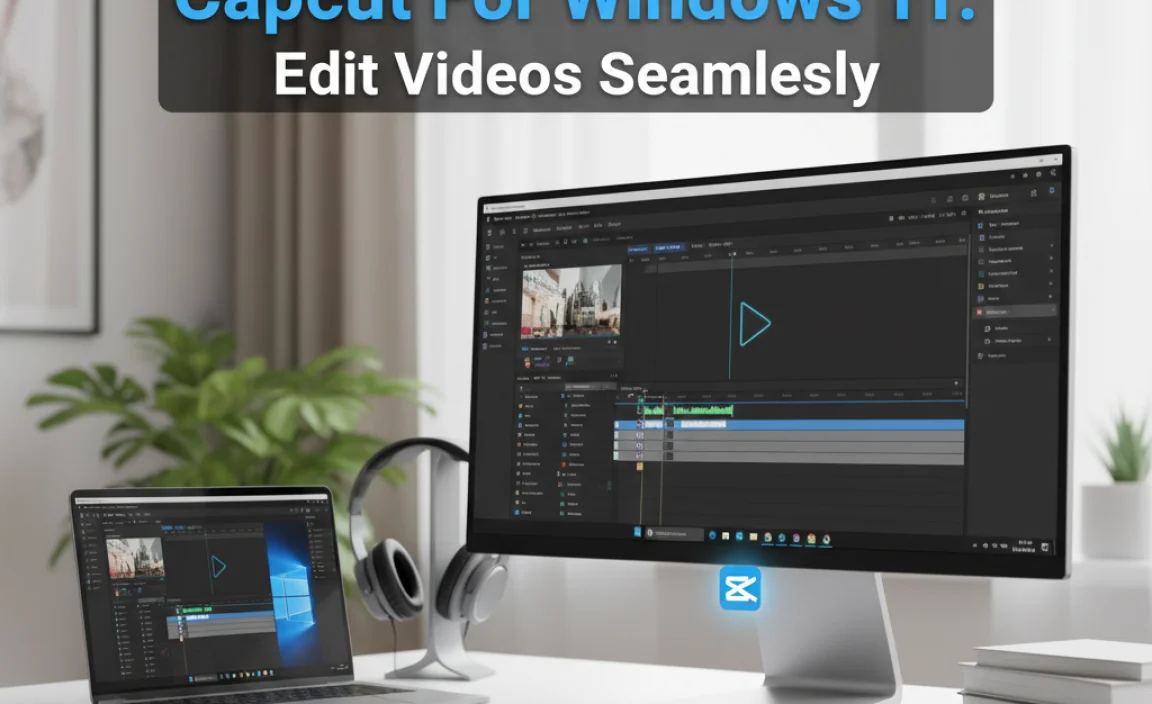
ByteDance expanded CapCut from a barebones smartphone utility into a serious desktop contender, targeting creators who want rapid turnaround times without the steep learning curves of Premiere Pro or DaVinci Resolve. The software now leans heavily into native desktop performance. As detailed in the recent pcmag.com Report surveying the top video editing suites, modern consumer suites live or die by their balance of algorithmic automation and raw rendering efficiency.
On Windows 11, that balance carries a price tag. ByteDance has systematically migrated core editing features, once free on desktop, behind its Pro subscription paywall. Editors running Windows 11 now face an immediate choice: stay on the baseline free installation or pay for unhindered exports, optical flow motion blur, and advanced neural processing.
📌 Key Takeaways:
- Render Parity: Windows 11 hardware acceleration functions on both tiers, but Pro unlocks dedicated high-bitrate codecs, custom color depth, and AI-accelerated render passes.
- Paywall Reality: Essential features like optical flow motion blur, vocal isolation, and advanced auto captions generator templates now block exports on the free tier.
- Subscription Math: At $9.99 monthly or $89.99 annually, the software demands steady project volume to justify costs against perpetual-license competitors.
ByteDance Shifts the Desktop Frontier to Windows 11
The desktop build of CapCut bypassed Microsoft Store obscurity by matching the interface design language of Windows 11. It takes direct advantage of Windows direct storage calls and DirectX 12 hardware mapping. When CapCut Desktop first arrived on PC, almost every feature was unrestricted. Users cut vertical clips, generated transcripts, and exported high-resolution media without entering payment details.
That grace period ended. Over consecutive updates, small lock badges appeared beside everyday editing toggles. First came selective audio isolation. Then came smooth slow-motion frames calculated via optical flow. Now, entire subtitle translation modules and neural masking tools trigger a payment gate. The free version remains functional for straightforward timeline slicing, but the program constantly nudges users toward a credit card checkout whenever they touch creative automation.
Export Speeds and Windows 11 Hardware Acceleration Benchmarks
To evaluate the mechanical differences between tiers, we ran export evaluations on an identical Windows 11 machine equipped with an Intel Core i7-14700K, 32GB DDR5 RAM, and an Nvidia RTX 4070 GPU. The timeline consisted of a five-minute sequence containing 4K 60fps H.265 footage, color grades, text layers, and layered audio.
Windows 11 hardware acceleration operates across both versions, routing encoding workloads through Nvidia NVENC or Intel QuickSync blocks. The raw export clock for basic, un-effected timelines remains nearly identical:
- Free Tier: Basic 4K 60fps export (CBR 50 Mbps, H.264) completed in 2 minutes, 14 seconds.
- Pro Tier: Identical sequence export completed in 2 minutes, 11 seconds.
Performance splits dramatically once AI layers enter the timeline. The Pro version utilizes dedicated tensor-core processing hooks for background removal and motion tracking. On the free tier, stacking basic software-rendered effects pushed timeline playback down to 22 frames per second during preview scrubs. On the Pro tier, background pre-rendering and GPU-bound optical flow calculations maintained a fluid 58, 60 frames per second preview window. Pro does not merely unlock buttons; it grants access to multi-threaded render pipelines that keep the Windows 11 desktop responsive under heavy visual loads.
CapCut Pro vs Free Feature Audit and System Performance
The decision to purchase depends on which tools halt your workflow at the export stage. If you apply a single Pro asset, CapCut lets you edit uninterrupted, but it will forbid you from rendering the final master until you either strip the effect or buy the license.
| Feature / Metric | CapCut Free (Windows 11) | CapCut Pro (Windows 11) |
|---|---|---|
| 4K 60fps Video Export | Included (Standard Bitrates) | Included (Higher Bitrates, ProRes, HEVC) |
| Auto Captions Generator | Basic transcription, plain styles | Bilingual translation, kinetic animations |
| Motion Interpolation | Frame Blending / Basic duplicate | Optical Flow Motion Blur & Speed Ramping |
| Background Removal Tool | Basic Chroma Key only | Smart Cutout, Stroke, Custom Edge Feather |
| Vocal Isolation / Denoise | Standard noise reduction filter | Deep voice isolation, room echo removal |
| Export Watermark Rules | No watermark (clean timeline exports) | No watermark (all assets unlocked) |
Desktop AI Tools: Auto Captions, Optical Flow, and Cutout Precision
The auto captions generator drives immense traffic to CapCut. Social media video demands instant text hooks. The free version transcribes English, Spanish, and several major languages with high accuracy. However, Pro locks down dynamic kinetic templates, the floating, expanding, karaoke-style highlighted words common on short-form feeds. If your production pipeline relies on automated text motion graphics, the free build leaves you manually keyframing each word.
Smooth speed manipulation shows another deep divide. Dropping a 30fps clip to 20% speed results in severe stutter under standard frame interpolation. CapCut Pro activates optical flow motion blur. The software analyzes vector vectors between consecutive frames, generating intermediary frames on the fly. Running on Windows 11 with an updated RTX driver, this creates cinematic slow motion from smartphone assets. Free users must settle for frame blending, which introduces ghosting artifacts.
The automated background removal tool functions similarly. While the free chroma key clears flat green screens effectively, the Pro Smart Cutout isolates human subjects against uncontrolled, textured backgrounds. It traces hair boundaries and moving limbs without manual rotoscoping, cutting composite preparation time from hours down to seconds.
Hardware Baseline: Windows 11 System Requirements
CapCut markets itself as accessible, but high-end AI modules strain budget hardware. Running CapCut on Windows 11 requires a realistic assessment of machine internals:
- Minimum Operating System: Windows 11 64-bit (Version 22H2 or later recommended for thread scheduling).
- Processor: Intel 8th Gen Core / AMD Ryzen 2000 series minimum; Intel 12th, 14th Gen or AMD Ryzen 7000, 9000 series recommended for AI feature rendering.
- Memory: 8GB RAM minimum; 16GB to 32GB DDR4/DDR5 required when running 4K timelines with motion blur layers.
- Graphics: DirectX 12 compatible card. Integrated Intel Iris Xe or AMD Radeon 780M will function for basic 1080p cutting. Discrete Nvidia GPUs (RTX 3060 and above) are required to avoid long processing freezes during Smart Cutout and vocal extraction tasks.
- Storage: Fast NVMe SSD storage. The CapCut cache directory swells quickly; working with 4K assets can generate 30GB to 60GB of temporary cache files per project.
Pricing Realities and Watermark Management
Misunderstandings persist regarding desktop watermarking. The mobile version of CapCut inserts an editable default ending frame bearing the company logo. On the Windows 11 desktop app, standard exports carry no watermark, even on the free tier. You can export clean, professional 1080p and 4K footage without paying a cent, provided every asset, transition, sound effect, and font belongs to the free catalog.
The conflict arrives with mixed timelines. If you accidentally apply a Pro transition or use a Pro vocal clarifier, the export window shows a pop-up requiring payment. It gives you two choices: join CapCut Pro or locate and delete the premium element from your project.
CapCut Pro subscription pricing sits at $9.99 per month or $89.99 for an annual pass. Occasional promotional windows discount the yearly fee down to roughly $74.99. Compared to Adobe Creative Cloud, it represents a fraction of the operating cost. However, compared to perpetual software like DaVinci Resolve Studio (a one-time $295 fee), CapCut's ongoing subscription model adds up over several years.
Frequently Asked Questions (FAQ)
Q1: Does CapCut Free put a watermark on Windows 11 exports?
A1: No. The desktop client exports completely clean videos without watermarks on the free version. Watermarks or export blocks only appear if you intentionally incorporate a Pro-labeled feature, filter, or effect into your timeline.
Q2: Can I export 4K 60fps video on the free Windows 11 version?
A2: Yes. The free tier allows 4K resolution exports up to 60fps. The Pro subscription simply unlocks higher custom bitrate ceilings, ProRes encoding options, and advanced multi-pass color profiles.
Q3: Will CapCut Pro run smoothly on an entry-level Windows 11 laptop?
A3: Basic timeline cuts will work, but advanced Pro tools like optical flow motion blur and background removal rely heavily on dedicated graphics hardware. Running these tools on entry-level integrated graphics will cause stuttering and extended render times.
Choosing Between the Free Tier and the Pro License
The free version of CapCut on Windows 11 remains one of the fastest, most capable tools for simple video cutting, rough assemblies, and standard social content. Editors cutting interview clips, YouTube walk-throughs, or simple presentations do not need the paid tier. The timeline performance is stable, hardware decoding accelerates playback, and standard export quality easily matches platform compression standards.
Upgrading to CapCut Pro becomes an economic decision based on manual labor saved. If your daily workflow requires complex typography animations, fast auto-caption translation, acoustic room noise removal, and complex rotoscoping, paying $89.99 a year pays for itself by eliminating hours of manual keyframing. But if your work relies on standard cuts, basic color adjustments, and external audio tracks, the free Windows 11 client provides everything you need without opening your wallet.
