How to Put a GIF as Your Microsoft Wallpaper: Complete Free Guide for Windows 10 and 11
Right-clicking an animated GIF and selecting "Set as desktop background" in Windows ends in immediate disappointment. Instead of fluid motion, your screen displays a frozen, low-resolution first frame. Microsoft has refused to support animated desktop formats natively across Windows 10 and Windows 11, citing shell stability and legacy memory architectures. If you want a looping GIF background, you must rely on purpose-built rendering engines that hook into the desktop shell without compromising system speed.
The process does not require risky registry hacks or paid utility subscriptions. Modern desktop customization tools can run animated sequences smoothly while dropping resource consumption to zero whenever you run a game or open a browser window. Technical guides like the Alphr Report have chronicled this workaround for years, but modern Windows app sandboxing and open-source software have made setting a live wallpaper safer and faster than ever.
📌 Key Takeaways:
- Native Limitation: Windows treats `.gif` files as static bitmaps, converting them into single-frame JPEG files in the user cache.
- The Free Solution: Open-source, verified tools like Lively Wallpaper via the Microsoft Store display animated GIFs and videos without watermarks or subscription fees.
- Resource Efficiency: Modern engines automatically pause video decoding during full-screen applications, keeping the GPU performance impact under 1% to 2% during regular work.
Why Windows Freezes Animated GIFs by Default
The Windows Desktop Window Manager (DWM) separates UI elements from raw desktop rendering to prevent crashes. Back in the era of Windows 98 and Windows ME, Microsoft introduced Active Desktop, an early attempt to let users display interactive HTML and animated media directly on the screen. It caused persistent memory leaks, system instability, and high processor drain. Microsoft excised the feature, locking the wallpaper pipeline to static formats like JPEG, PNG, and BMP.
When you attempt to force an animated GIF through the standard Personalization settings today, Windows decodes the initial frame into a cache directory located at %AppData%\Microsoft\Windows\Themes. The operating system discards every subsequent animation frame. Getting an animated desktop background on modern hardware requires software that injects a dedicated rendering layer directly behind your desktop icons. This layer acts as a continuous media canvas without disturbing system-level Explorer processes.
Setting Up a Looping GIF Background with Lively Wallpaper
The safest, most capable tool for Windows 10 and Windows 11 is Lively Wallpaper. Developed by Dani John, this completely free live wallpaper software is open-source and officially distributed through the Microsoft Store. It operates cleanly inside the Windows sandbox, meaning it does not alter core system files or install bundled bloatware.
Setting up your animated background takes under three minutes:
- Download the Software: Open the Microsoft Store app on your PC, search for Lively Wallpaper, and select Install. Alternatively, grab the direct installer from GitHub.
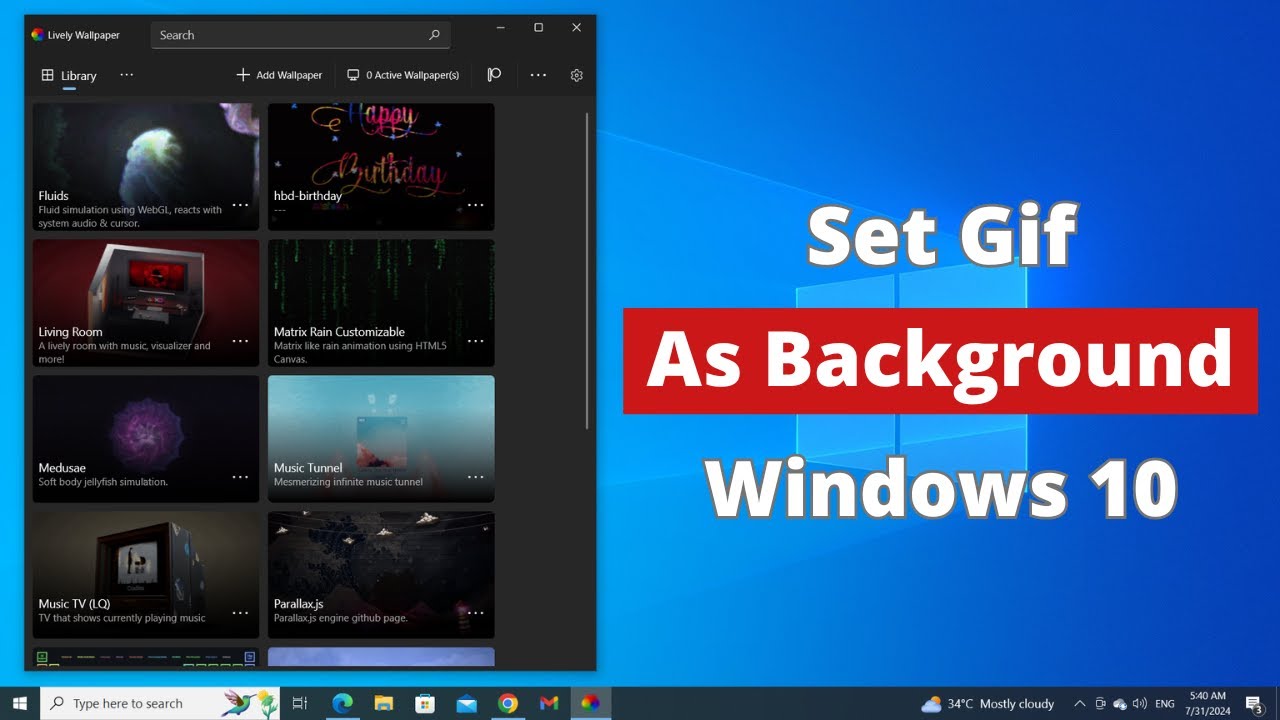
- Launch and Explore: Open Lively from your Start menu. The app launches with a default library of preloaded interactive environments and kinetic simulations.
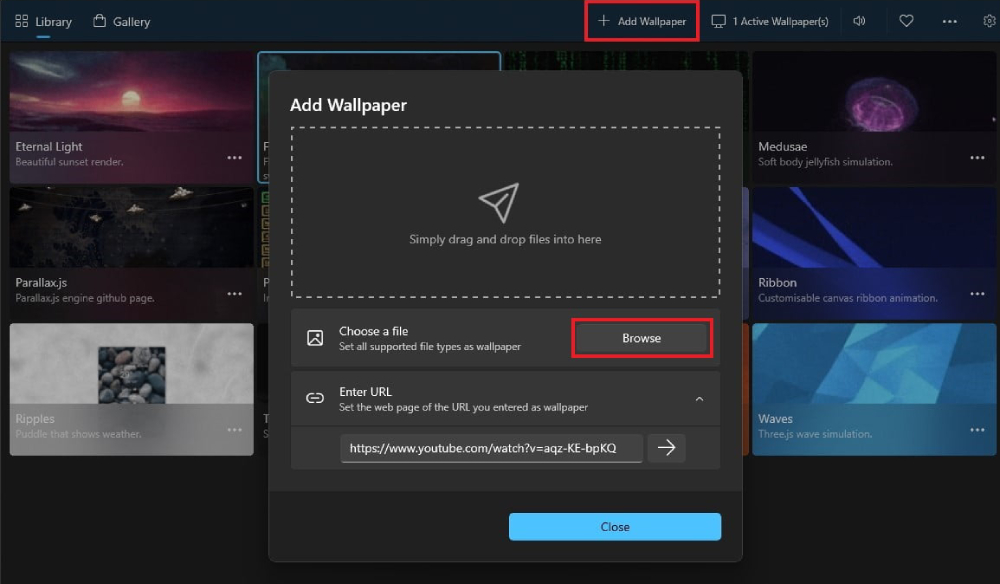
- Import Your GIF: Click the Add Wallpaper icon (the
+symbol) in the upper navigation bar. - Select Your File: Drag and drop your downloaded `.gif` file directly into the app window, or click Browse to select it from your local storage drive.
- Configure Metadata: An attribute dialogue box will appear. Enter a title for your wallpaper and click OK. Lively will automatically compile the GIF and project it beneath your desktop shortcuts.
If you prefer an alternate animation, open the Lively library, right-click the item, and select Set as Wallpaper. To restore your standard wallpaper, close or pause the application from the Windows taskbar system tray.
Resource Consumption: Free Open-Source Tools Versus Paid Engines
Running moving wallpapers introduces system resource usage, but the performance toll depends heavily on the engine you select. While Steam’s Wallpaper Engine has long served as the enthusiast benchmark for desktop customization tools, open-source options now rival its efficiency for standard image loops and video backgrounds.
| Software Option | Price & Licensing | Idle Hardware Footprint | Supported Media Formats |
|---|---|---|---|
| Lively Wallpaper | Free / Open Source | RAM: 120, 180MB | GPU: 0.5, 2% | GIF, MP4, WebM, HTML, WebGL |
| Wallpaper Engine | $3.99 (Steam One-Time) | RAM: 80, 140MB | GPU: 0.5, 1.5% | GIF, MP4, Interactive 3D, Audio Visualizers |
| DesktopLiveWallpaper | Freemium ($2.99 Pro) | RAM: 150, 220MB | GPU: 2, 4% | WMV, MP4 (GIF requires conversion) |
| Plastuer | $5.00 (Donationware) | RAM: 200, 350MB (Chromium) | GPU: 2, 5% | GIF, WebM, MP4, Web URLs |
For users who want zero upfront cost and full Microsoft Store convenience, Lively remains the standard. If you want native Steam Workshop support with access to millions of community-created interactive canvases, Wallpaper Engine offers exceptional return on a tiny one-time purchase.
Converting High-Resolution Video to Lightweight GIF Loops
Finding a GIF with enough visual clarity to look sharp across a 1440p or 4K monitor is notoriously difficult. The legacy GIF standard is restricted to an index of 256 colors. This causes noticeable color banding, visual grain, and large file sizes. Large GIF files require surprising amounts of RAM because the rendering software must hold all decoded bitmap frames in memory.
Instead of searching exclusively for `.gif` files, you can use built-in tools like Microsoft Clipchamp to convert smooth video clips into high-resolution loops. Clipchamp exports directly to MP4 or GIF formats. However, modern wallpaper applications like Lively let you set video as desktop background directly.
Running an MP4 or WebM video file encoded in H.264 or AV1 delivers sharper image quality than a traditional GIF. It also requires less storage space and decodes directly on your graphics card's hardware media engine. To achieve this, export your preferred loop as an MP4 at 60 frames per second, drag it into Lively Wallpaper, and configure it identically to an animated GIF.
Hardware Optimization Rules for Laptop and Dual-Monitor Rigs
An animated desktop should never interfere with competitive gaming frame rates or drain your battery during unplugged sessions. To make sure your Windows 11 moving wallpaper or Windows 10 live wallpaper runs without draining power, tune these settings inside your customization app:
- Enable Fullscreen Pausing: Inside Lively Wallpaper's settings, navigate to the Performance tab. Set Apps Fullscreen to Pause. This completely stops rendering whenever a game, media player, or browser covers the entire screen, reducing GPU usage to 0.0%.
- Laptop Battery Management: Change the Battery Power toggle to Pause. If your laptop unplugs from wall power, the wallpaper freezes into a static image, saving battery life.
- Dual-Monitor Layouts: In multi-monitor systems, select the Display menu to choose how media is applied. You can mirror the same GIF across screens, stretch an ultra-wide animation across both panels, or assign an independent animation to each display.
Frequently Asked Questions (FAQ)
Q1: Will keeping an animated GIF wallpaper reduce my gaming performance?
A1: Not if you use modern apps like Lively Wallpaper or Wallpaper Engine. Both applications include automatic pause rules. As soon as a game runs in full-screen or borderless window mode, the engine suspends playback and releases GPU and CPU pipelines entirely.
Q2: Why does my animated wallpaper stutter or play in slow motion?
A2: This usually happens when an uncompressed, high-resolution GIF file exceeds your system's memory cache, or if Windows power-saving settings restrict background execution. Converting your GIF to an MP4 video file and letting your GPU handle hardware decoding resolves playback stutters immediately.
Q3: Can I set an animated desktop on Windows without installing any third-party software?
A3: No. Modern releases of Windows 10 and Windows 11 do not support native animated desktop surfaces. Any functional loop requires a secondary shell engine or verified Microsoft Store wallpaper app to display moving media behind your desktop icons.
The State of Windows Desktop Personalization
Microsoft's hands-off design philosophy toward native animated backgrounds has created a strong ecosystem of third-party alternatives. By separating desktop media display from core Explorer processes, open-source developers have delivered tools that avoid the crashes and system drag that plagued earlier Windows eras.
Whether you choose a lightweight looping GIF background or opt for high-definition WebM clips, modern tools make the process simple. Software like Lively Wallpaper gives Windows 10 and 11 users total aesthetic control over their screens, turning static workstations into fluid visual spaces without sacrificing everyday system performance.
