Spotify Device Broadcast Status Master Guide: How to Fix Sync Issues and Protect Privacy
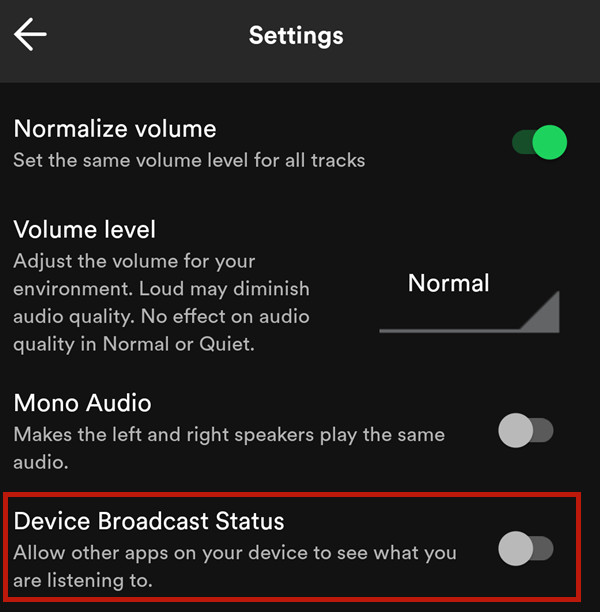
Every time a track starts playing on an Android device, a silent signal ripples through the operating system. Tucked away under Spotify mobile app settings sits an ambiguous toggle labeled "Device Broadcast Status", translated in Spanish-language interfaces as estado de emisión del dispositivo. For millions of listeners, this setting remains untouched until their Discord Rich Presence suddenly breaks, navigation prompts in Waze silence their music unexpectedly, or home automation routines fail to fire.
The switch controls whether Spotify announces your playback activity to other applications installed on your phone. Disabling it locks down your playback data, preventing local snooping from rogue apps, while enabling it bridges Spotify with external software without requiring complex cloud authentications. Understanding how this broadcast mechanism functions across Android and desktop platforms is essential for fixing broken third-party integrations and securing your audio privacy.
📌 Quick Summary:
- Core Function: The toggle governs local Android system intents, letting other apps on your phone see track metadata, artist info, and playback states in real time.
- The Sync Bug: If Spotify status is not showing on Discord, an inactive broadcast status paired with aggressive Android battery optimization is usually to blame.
- Privacy Trade-Off: Leaving broadcasts active exposes your listening habits to any local app holding general notification or broadcast-receiver privileges.
Inside the Android Broadcast Intent Architecture
The Android operating system relies on an asynchronous messaging system known as intents. When you flip on the Android broadcast status toggle inside Spotify, the media player begins transmitting three distinct string actions through the OS broadcast channel: `com.spotify.music.playbackstatechanged`, `com.spotify.music.metadatachanged`, and `com.spotify.music.queuechanged`.
These strings carry critical track parameters. Any listening session outputs the track ID, artist name, album title, duration in milliseconds, and the current playback position. When you pause, skip, or scrub through a podcast, Spotify pushes an immediate payload update across your device bus.
Because this transaction happens entirely on the device via inter-process communication (IPC), it does not route through Spotify's external Web API servers. This architecture explains why local integrations respond instantaneously. It also explains why third-party app permissions matter: apps running locally do not need to ask Spotify for account credentials to discover what you are playing; they simply listen to the system-wide broadcast frequencies that Android exposes to registered receivers.
Resolving the Discord Rich Presence Sync Breakdown
The most frequent complaint among desktop and mobile power users centers on Discord Rich Presence sync failures. You launch a game, queue an album, and your Discord profile displays blank silence instead of your live listening activity.
Resolving this requires separating server-level handshakes from device-level broadcasts. On desktop platforms running Windows or macOS, Discord communicates directly through local socket loops and cloud API connections. On mobile devices, however, the Discord client frequently depends on Spotify's system intents to confirm that an active audio stream exists. If your device broadcast status switch is turned off, Discord mobile cannot verify that playback has started.
Aggressive power management creates a secondary failure point. Modern iterations of Android put inactive applications into a deep freeze to preserve battery life. If your phone restricts the Spotify Connect background service, the operating system throttles the broadcast intents the moment your screen turns off.
To restore seamless sync, navigate to your Android device settings, locate Apps > Spotify > Battery, and switch the profile from "Optimized" to Unrestricted. Return to Spotify, verify that Device Broadcast Status is toggled on, and disconnect and reconnect your Spotify account inside Discord’s Connections menu to clear stale OAuth tokens.
Comparing Audio Streaming and Data Sharing Protocols
Spotify uses different protocols depending on whether you share data across apps on the same phone, between speakers on a Wi-Fi network, or across web servers. Understanding these paths helps pinpoint where connection drops happen.
| Protocol / Channel | Transmission Scope | Latency & Overhead | Primary Vulnerability |
|---|---|---|---|
| Local Intent Broadcast | On-device operating system (Android IPC) | Under 5ms; negligible battery usage | Unrestricted local reading by installed apps |
| Spotify Connect (mDNS/SSDP) | Local Area Network (Wi-Fi / Ethernet) | 50, 150ms; moderate radio polling | Guest network interception; hijacked controls |
| Spotify Web API (OAuth 2.0) | Cloud-to-cloud server infrastructure | 200, 800ms; depends on server load | Stale token permissions; cloud database breaches |
Integrating Navigation and Automation via Waze and Tasker
Third-party utility tools rely heavily on local system intents to function without network lag. A prime example is the Waze Spotify integration, which brings an audio banner straight into your driving turn-by-turn view. While Waze relies on an initial software-level authentication to manage transport controls like skipping tracks, it uses device broadcast intents to update the displayed album artwork and song progress smoothly while driving through poor cellular reception.
Power users who use Tasker automation intents take this concept further. By setting Tasker up to listen for `com.spotify.music.metadatachanged`, you can build custom triggers that activate automatically:
- Logging every played track directly to a private spreadsheet file.
- Adjusting smart desk light colors based on song genres or track titles.
- Automatically lowering media volume when non-music audio streams begin.
If the broadcast toggle is turned off, Tasker receives no broadcast updates. It remains blind to whatever Spotify plays until you manually flip the switch back on.
Balancing Listening Utility and Mobile Privacy
While these local connections make multi-app setups convenient, turning them on introduces distinct privacy considerations. Every song, podcast, and audio stream you listen to produces personal behavioral data. When your broadcast status is enabled, any utility application on your Android phone with standard broadcast receiver declarations can log your listening activity without triggering runtime security warnings.
Data aggregators embedded within free utility apps, such as simple calculator tools, wallpaper managers, or flashlight apps, can passively assemble listening profiles over time. They note when you wake up, your late-night routines, and the exact genres you play while driving.
If you don't use automation tools like Tasker, navigation links like Waze, or status displays like Discord Rich Presence, keep Device Broadcast Status turned off. Disabling this setting stops local data leaks instantly. It won't interrupt regular music playback, offline downloads, or Spotify Connect streaming to home speakers.
Frequently Asked Questions (FAQ)
Q1: Why is the Device Broadcast Status setting missing on my iPhone?
A1: iOS uses a strict sandboxing model that prevents apps from broadcasting system-wide intents the way Android does. Spotify on iOS communicates with apps like Discord or Waze through cloud-based APIs and Apple's Media Player framework, removing the need for a manual broadcast toggle.
Q2: Does disabling this switch hide my listening habits from desktop Spotify friends?
A2: No. The Device Broadcast Status toggle only controls local Android system intents between apps on your phone. To hide what you are playing from friends on the desktop client, open Spotify settings, select Privacy & Social, and turn off Share my listening activity on Spotify or start a Private Session.
Q3: Why does my Discord playback status freeze on a single song?
A3: This freeze usually happens when Android's battery management suspends Spotify's background processes mid-track. Go to your phone's battery settings and set Spotify to Unrestricted. Turning the broadcast toggle off and on again clears any stuck broadcast queues.
Auditing Your Audio Footprint
Modern smartphone audio goes far beyond simple headphone playback. Every audio session operates within a web of cloud tokens, shared local networks, and internal operating system signals.
Managing your device broadcast status gives you direct control over these connections. Turning it on enables seamless automation with Tasker and keeps your status active on Discord. Turning it off secures your listening habits against local app tracking. Auditing this single switch lets you keep your media playback connected when you need it and private when you don't.
